Engineering workstations play a very important and critical role in industrial automation. They are the ultimate PCs through which the engineer communicates with the external field of automation by programming them. So it has all the necessary engineering software, OS, drivers, and patches.
Engineering Workstations
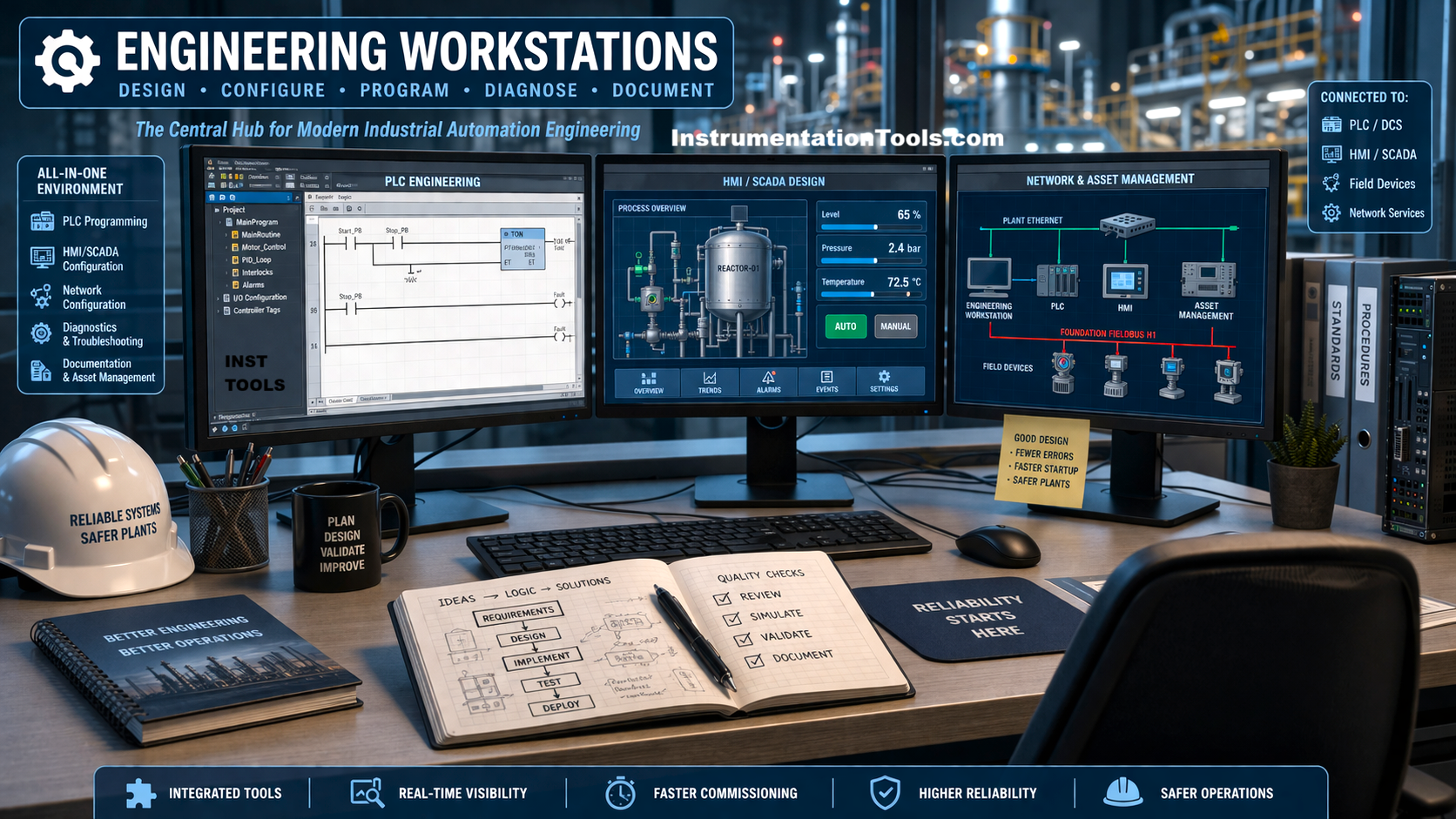
In simple terms, all these tools in an engineering workstation PC are defined by a term called a patch. That is why the software updates of these patches must be managed properly without disturbing the plant’s operation. In this post, we will see the patch management for engineering workstations.
What is the difference between an engineering workstation and a normal programmer’s laptop in industrial automation?
Let us first understand the terms of an engineering workstation and a normal programmer’s laptop. A laptop with all the programming software does not automatically become an engineering workstation, just because it allows programming for automation equipment. It is treated as an engineering workstation only when the laptop is formally treated, controlled, and trusted as a part of the OT environment. This means that an engineering workstation is a role, not just a piece of hardware.
These workstation PCs or laptops must be registered as an asset with the company, used repeatedly to access the automation devices, have a controlled OS image, have supervised access, be under patch control with proper antivirus and security policies installed, be network isolated, pose no unknown security threat, and have a lifecycle ownership.
Let us thus conclude that a laptop with engineering software is not automatically an engineering workstation; it becomes an EWS only when it is formally controlled, approved, managed, and secured as part of the OT environment.
What is patch management in industrial automation?
Now, coming to the next part, let us see what patch management basically means. As discussed earlier, all the engineering tools need to be updated on a timely basis for the latest patch and software. But while doing that, care should be taken that the running plant is not hampered in any way. This is called patch management.
This is ultimately the controlled process of evaluating, testing, approving, and deploying software updates without disturbing plant functioning. Any wrong update process can stop downloads, corrupt projects, or crash runtime systems. This is because EWS has full access to all automation devices and often bypasses firewall restrictions, and even many automation vendors certify specific OS versions to run and require exact patch levels.
When you ask what needs to be patched on EWS, then the following items come under that: OS, engineering software, runtime, middleware (.NET Framework, Java), drivers, and antivirus. Let us now understand each patch part individually.
OS update for engineering workstation
OS update means upgrading Windows security patches, cumulative updates, .NET Framework updates, defender or antivirus engine updates, and service packs. On a larger scale, it also covers Windows version updates.
You should first think that the engineering tools are bonded with certain versions of Windows builds, .NET versions, and security libraries. Blindly updating them is not recommended at all. One thing to note is that when the EWS is not online or active with any system, or no background OT service is communicating, or a manual reboot is possible, then it is only advisable to update the OS. Otherwise, either the drivers or NIC settings may become corrupt or change, the firewall may turn off, or some software may malfunction, or some license service may fail.
When updating an OS, always check the product compatibility first, with its approved Windows build and patches, and if it does not match, then do not proceed. Before updating, take a full system image backup, program backup, and disconnect the network connection (which means download the update first, and then turn off before installing).
Once the update has been done, restart the PC manually. Check whether the software is opening properly and able to go online, the license service is running, the network is running, and the firewall is not blocking anything. At last, make a document for recording the date, OS build before and after, test results, and rollback plan.
Engineering software update for the engineering workstation
Engineering software updates on an engineering workstation are significantly more critical than normal IT application updates because this software is the direct interface to live PLCs, DCS, and SCADA systems. Such updates may include minor or major version changes, hotfixes, device catalog updates, or vendor security patches, but they do not automatically involve PLC firmware upgrades. These updates can be performed in the same way as OS updates for checking prerequisites.
However, engineering software updates carry higher hidden risks that often appear later. A common issue is firmware compatibility, where a newer engineering software version may not support older PLC firmware, resulting in the inability to go online during an emergency.
Another major risk is forced project conversion, where updated software requires upgrading project files in a one-way process, making them unusable in older versions still used by vendors or contractors. Updates can also modify communication drivers, OPC components, or discovery services, leading to situations where PLCs are visible on the network but cannot be connected.
Licensing failures are also frequent, with license services not starting, dongle drivers being replaced, or activation paths being reset. In addition, engineering workstations often host multiple OT applications, and updating one tool can overwrite shared libraries or runtimes, unintentionally breaking other software.
Vendor compatibility must be verified in advance, including supported Windows versions, PLC firmware levels, and coexistence with other engineering tools. The type of update must be classified, as security hotfixes, minor revisions, and major version upgrades each require different levels of testing and approval. Before applying the update, a full system image backup and project backups must be taken, licenses secured, and the OT network disconnected. Updates should be applied during a planned maintenance window and strictly according to vendor instructions.
After installation, post-update validation is mandatory before reconnecting to production systems. The software must launch normally, licenses must be valid, and projects must open without errors or unplanned conversions. Functional verification must then be performed using a simulator or test PLC to confirm stable online connectivity, successful uploads and downloads, and correct compilation behavior.
Runtime update for engineering workstations
SCADA runtime displays live screens and communicates with PLCs and other higher-level automation. Like the earlier case, the SCADA software update also has the same prerequisites before proceeding.
To execute a SCADA runtime software update, perform the following steps in sequence: plan a maintenance window, stop SCADA runtime services, ensure operators operate the plant from backup HMI, validate the vendor runtime patch version, and then apply if matching, restart the PC, start runtime services, verify alarms, trends, and communication, and hand back the system to operators.
As middleware, drivers, and antivirus too have similar concepts, I will highlight only the differences for simple understanding below.
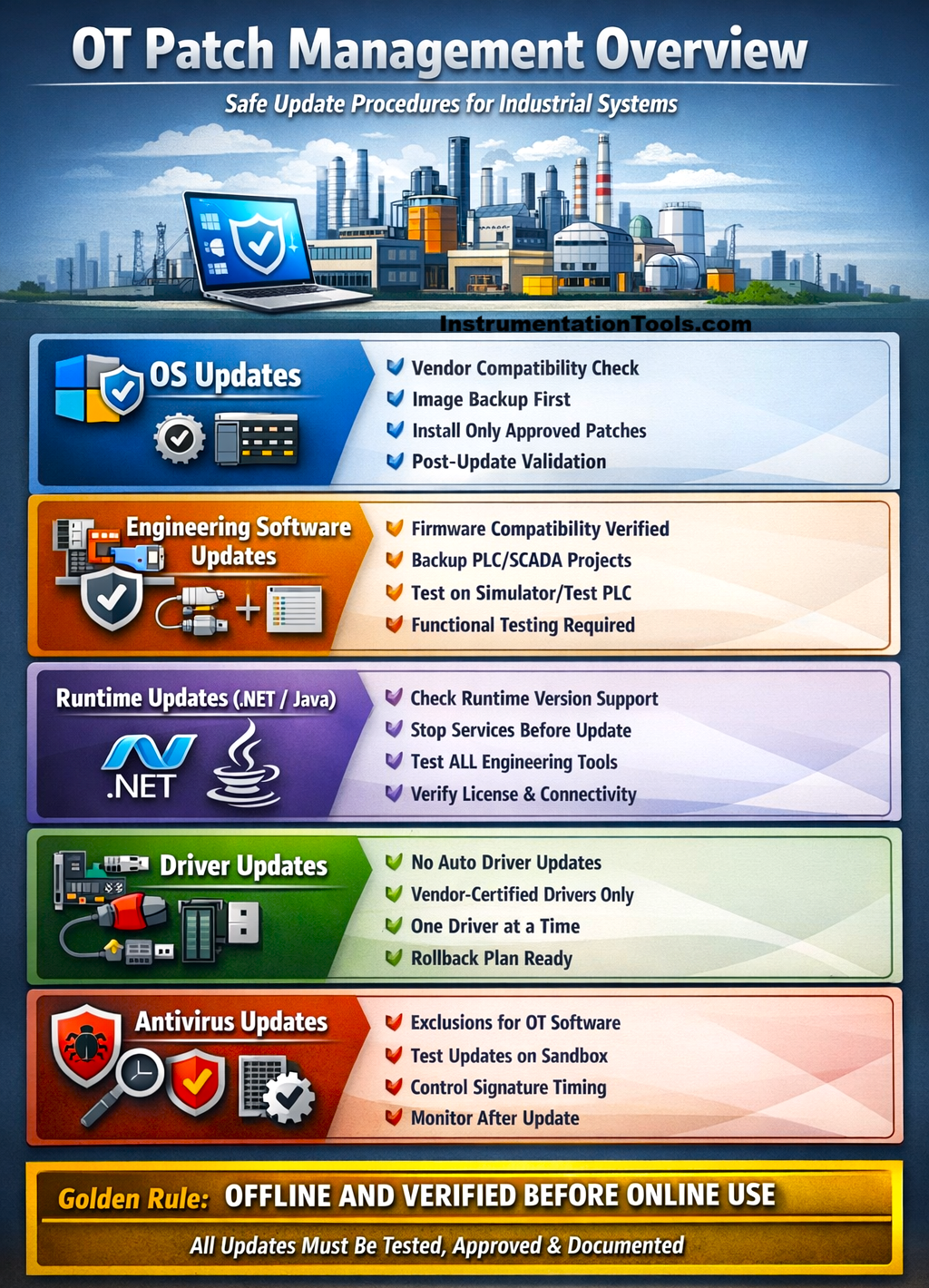
Middleware
Risk:
- Silent, cross-application failures (affects multiple engineering/SCADA tools at once)
- Crashes, license failures, or an inability to go online may appear after the update
- Often installed automatically via OS updates or bundled installers
Management Steps:
- Disable automatic OS/runtime updates if possible
- Only apply vendor-approved versions
- Test all dependent applications after updates
- Maintain a backup or snapshot for rollback
Driver
Risk:
- Immediate and system-level failures
- Can break PLC communication, disable fieldbus/Ethernet cards, or cause blue screens
- Often requires a reboot to take effect
- Even small version mismatches can create critical hardware issues
Management Steps:
- Prevent automatic driver updates from Windows or other sources
- Apply only vendor-certified drivers
- Update one driver at a time during maintenance windows
- Keep driver backups or system images for rollback
Antivirus
Risk:
- Continuous operational interference
- May block engineering software, PLC communication ports, or project files
- Can degrade system performance unpredictably
- Updates (engine/signatures) happen automatically by default
Management Steps:
- Configure vendor-recommended exclusions for engineering software and PLC communication paths
- Control the timing of signature and engine updates
- Test antivirus updates on non-production systems first
- Monitor post-update behavior for stability
I will now share my own experience where I realised that patch management is extremely important. One of my customer sites had Windows 10 with Studio 5000 V32 and FactoryTalk View SE V12 installed. One fine day, the PC restarted and upgraded to Windows 11, as the client had turned on auto-updates by mistake.
I told the client that V32 will not function properly in this version and needs to be updated to V34 or higher for better support with the current Windows version. But he was not willing to do that, as he had the same laptop going online for the remaining PLCs in the plant with the same version.
So now, I opened the software, and what was expected happened – the software did not open due to some missing patches. He required urgent logic changes, but nothing could be done in that case. So, I had to take support from the vendor to install or uninstall the necessary Windows patches for opening the software.
The software finally opened after 5 days, which made the client realise his mistake. So, I strongly concluded – if the patch does not support, do not move ahead. Work only with the supported patch as discussed earlier.