Rockwell Automation is a very famous brand in industrial automation. It is widely used by many businesses and industries to automate their processes. We know that their SCADA product of FactoryTalk View, is used for many applications. This is a very advanced type of SCADA, which has many interesting features for programmers. One of them, which is not much known by the programmers, is a client key. In this post, we will see the concept of client keys in the FactoryTalk View Site Edition.
What is a Client Key in FactoryTalk View?
In our context, we are referring to the client as a SCADA runtime. Client key is a function where the action refers to the pressing of a key in the runtime. It means that whenever a keyboard key is pressed during run time, a particular action will happen. This gives the operator great flexibility in operating SCADA. Because whenever he needs to do any operation in SCADA, instead of going to the SCADA screen and searching for the object, we can directly use the keyboard keys and do our work. You can define multiple such key operations in the SCADA program to use this feature.
Assigning Custom Keyboard Controls
Refer to the image below. In the option client key, you need to click new. A window will open as shown in the image below. There, you need to click the option – add key. A small window will then open as shown. The following keys are configurable – F1 to F12, TAB, Down arrow, End, Enter, Home, Left Arrow, Page Down, Page Up, Right Arrow, Up Arrow, SPACE, and A to Z. You can also use any key with a combination of Ctrl and Shift.

Once you have added the key, you then need to define the action. All the macro actions that are available in the software are possible in this too. For example, in our case, I want to log out the user when I press my defined key action. So, in the press action, I select the logout control wizard. Similarly, you can write your desired action in a repeat action or release action. You can add multiple keys in a single client key option and assign their corresponding action. We will name our client key as Key1.
Next, we need to add this client key to our runtime. So, refer to the image below. When you run the application by clicking launch SE client, in the initial key setting, you need to define our client key created. So, whenever our runtime runs, this client key will come into action. And whenever you press your defined key, the log-out action will happen.
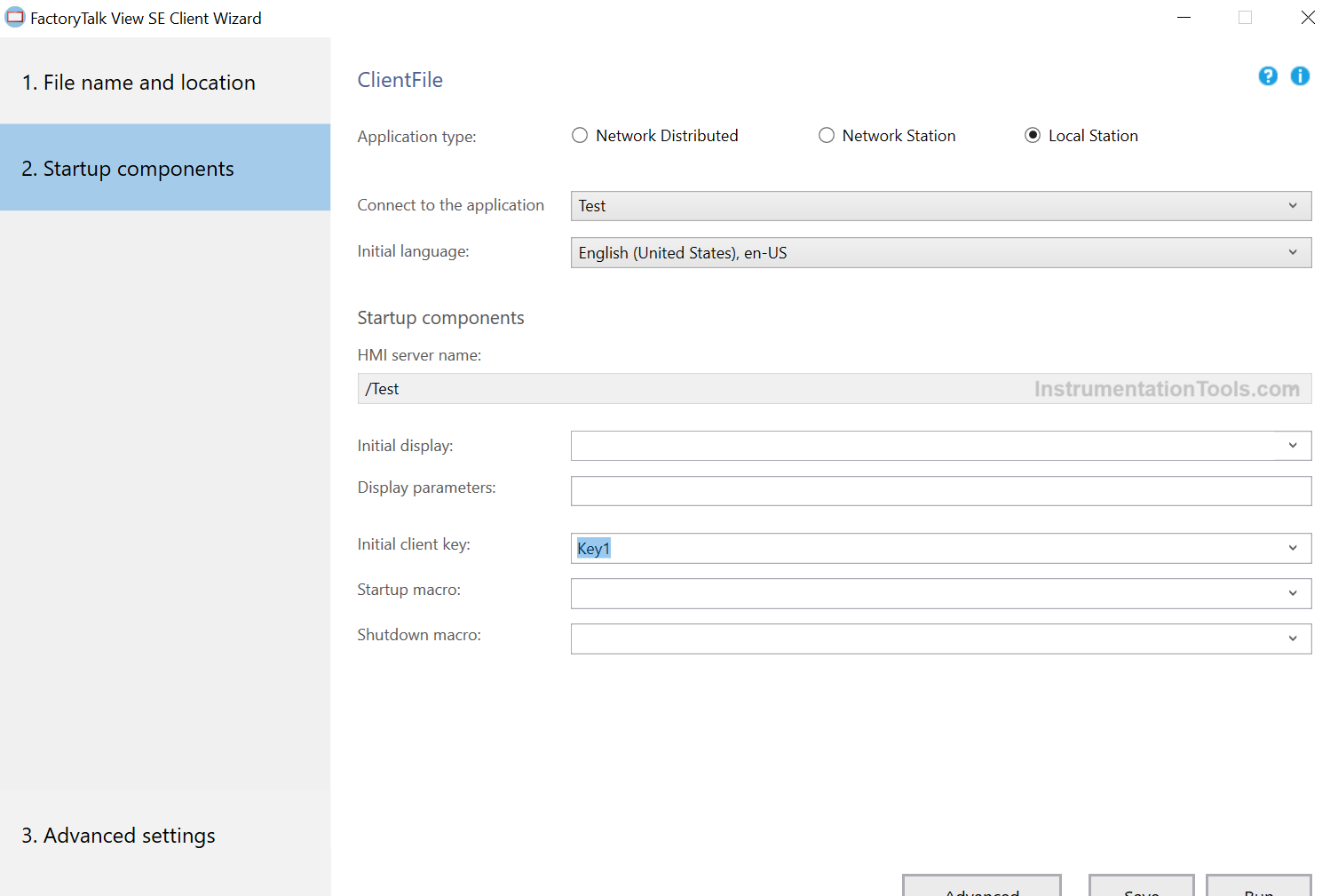
This completes our client key configuration. So, it is easy to use and set up. In environments where there are many objects on a screen, and any critical action will require an instant action from the operator, this key operation shortcut helps to achieve the task. However, this key shortcut must be shared only with the administrator, and not every operator. Otherwise, anyone will come and press the keyboard key, resulting in malfunctions of the plant’s operation.
Let us have a quick recap of the client key configuration:
- Add a new client key.
- Configure your required number of key operations. For each operation, assign your required action in press, release, or repeat. You can add multiple key operations (but only with a single action in press, release, and repeat) in a single client key.
- In the runtime configuration, add the client key you created in the initial client key option.
In this way, we saw FactoryTalk View Site Edition – Client Key operation in this post.
Read Next:
- Close Pop-ups in FactoryTalk View Studio
- Create a Faceplate in FactoryTalk View Studio
- Studio 5000 Programming for Digital Alarms
- FactoryTalk Studio and SQL Server for Data Log
- Simulation of Studio 5000 and FactoryTalk View