PROFINET is one of the most advanced and commonly used industrial communication protocols in modern automation systems. With its high performance, reliability, and comprehensive feature set, it provides a stable and efficient platform for real-time machine communication. However, while engineers can typically manage basic troubleshooting, they often struggle when more complex issues appear in the network. This is where advanced diagnostics become crucial. In this post, we will walk through the advanced diagnostic methods used in PROFINET communication.
Basic troubleshooting methods for Profinet communication
Before jumping into advanced diagnostics, it’s helpful to run through a few simple checks that often resolve problems without much effort.
- Start by looking at the indicator LEDs on the PROFINET device. If they are not lit, it usually means one of three things: the device hasn’t been configured, the network connection is interrupted, or the communication port is malfunctioning. Begin by confirming the configuration in your engineering software, then verify the cable and connections. Only after eliminating these possibilities should you suspect a faulty port.
- Another basic issue that frequently causes communication failure is an IP address conflict. If another device on the network happens to share the same IP, the PROFINET device will not establish a connection. Use tools like Advanced IP Scanner or Wireshark to map the network, check active devices, and identify any duplicate IP–MAC combinations.
- Speed and duplex mismatches can also disrupt communication. For example, if a device is set to 100 Mbps full duplex while the switch port is operating at 100 Mbps half duplex, communication errors, packet loss, and disconnections are common. Always confirm that all connected devices use compatible speed and duplex settings.
- Finally, ensure all devices—including your laptop—are on the same subnet. If the PLC uses an IP in the range 192.168.1.x, but your laptop is set to 192.168.0.x, you won’t be able to ping or connect to it. Assign your laptop an IP address within the automation network range so you can properly access and troubleshoot the devices.
Let us now move on to advanced steps. As Profinet is a product of Siemens Automation, we can use two cases:
- between Siemens products and Siemens products, or
- a third-party product using a GSD (general station description) file addition.
Let us see the steps below:
In TIA Portal, as you know, a network view is available where you can configure the network very easily. If the PN/IE subnet (the logical network that groups all PROFINET devices that should communicate with each other, because every device that must exchange PROFINET data must be assigned to the same PN/IE subnet in TIA Portal) is assigned incorrectly, then the communication will not happen.
PROFINET communication is not only based on IP addresses, but also requires a unique device name, correct PN/IE subnet and the matching topology. So in short, when you assign a subnet, TIA Portal realises which devices belong to the same network where IO devices are managed by the same control unit and how cyclic data will be exchanged between them.
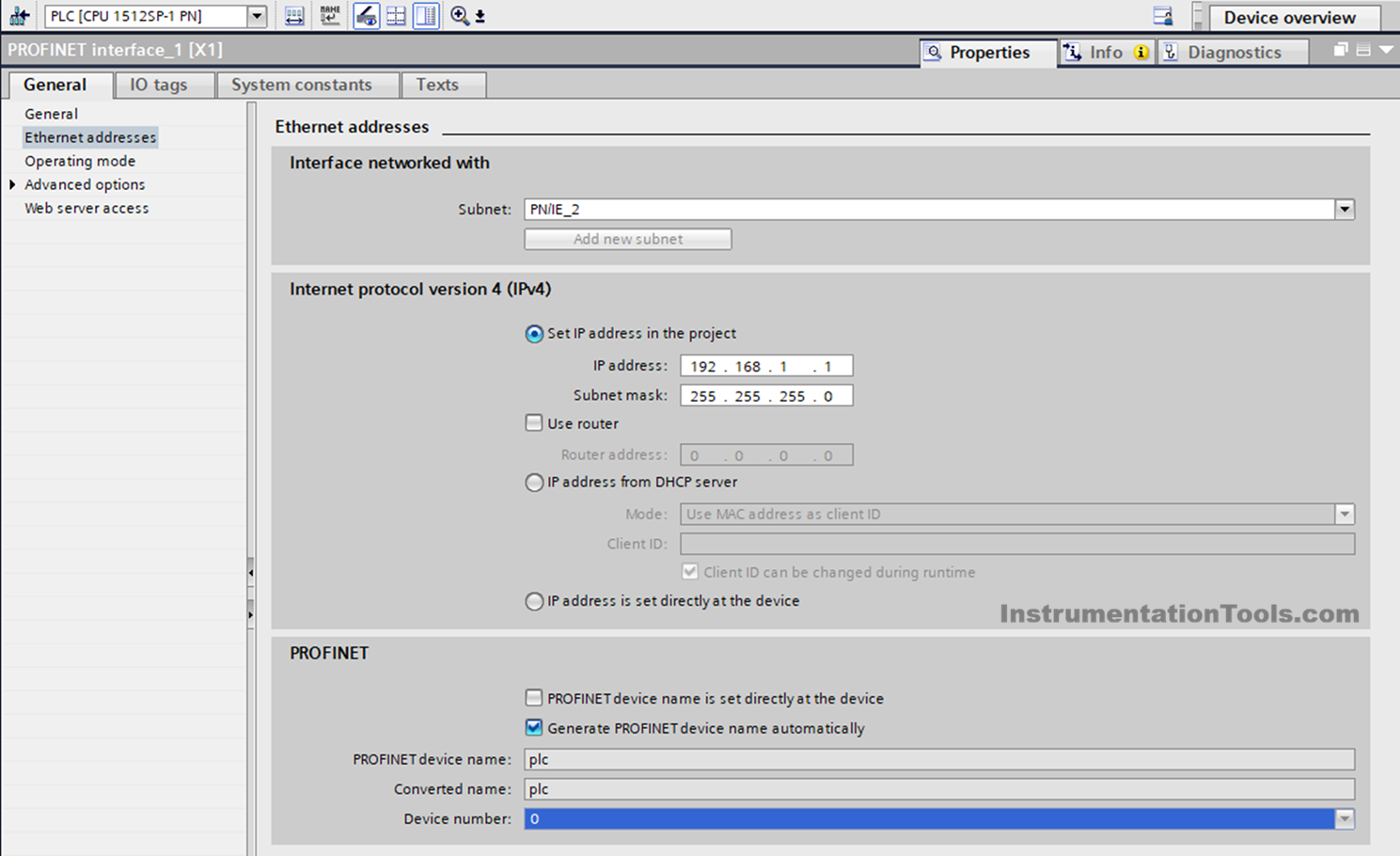
PROFINET has a unique concept of device name. The device is identified primarily by its device name and secondarily by its IP address. This name is used by the PLC (IO Controller) to identify and bind the IO device during startup. The name can be set either automatically or directly on the device.
Whatever the case may be, when you go online in the PLC and search for PROFINET devices on the network, it shows either manually entered names or automatically generated names. You should assign this name to the corresponding device. If this step is not done, then communication with that device will not happen. Issues can happen if the wrong name is linked, if a name is not assigned, or if the name is a duplicate.
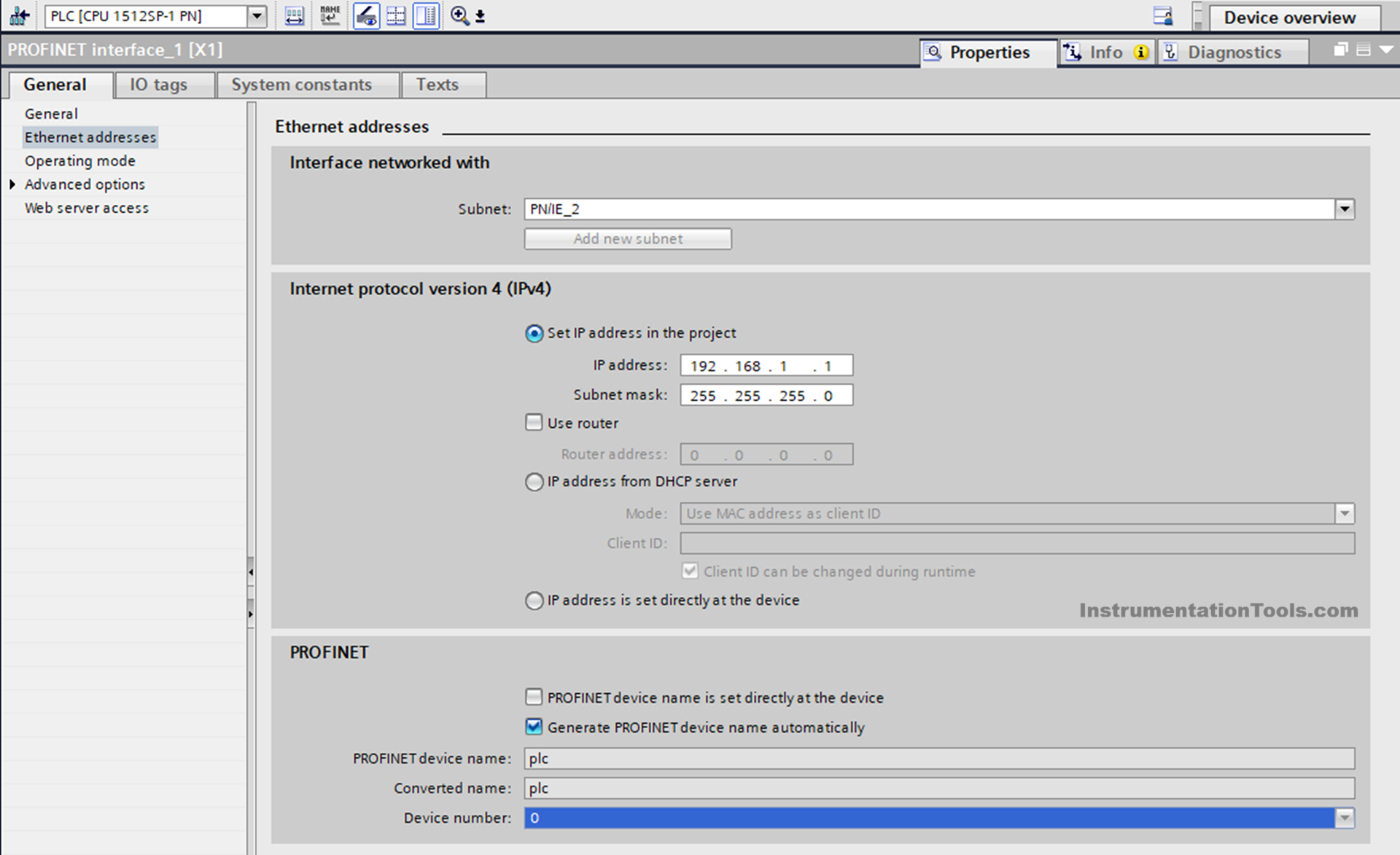
This name is very important, because even if the IP address is not assigned or the IP address is wrong, then too the PLC will correct this task automatically if the name is given. If there is no ID, then no further activity will happen. Refer to the above image for PN/IE and device name settings.
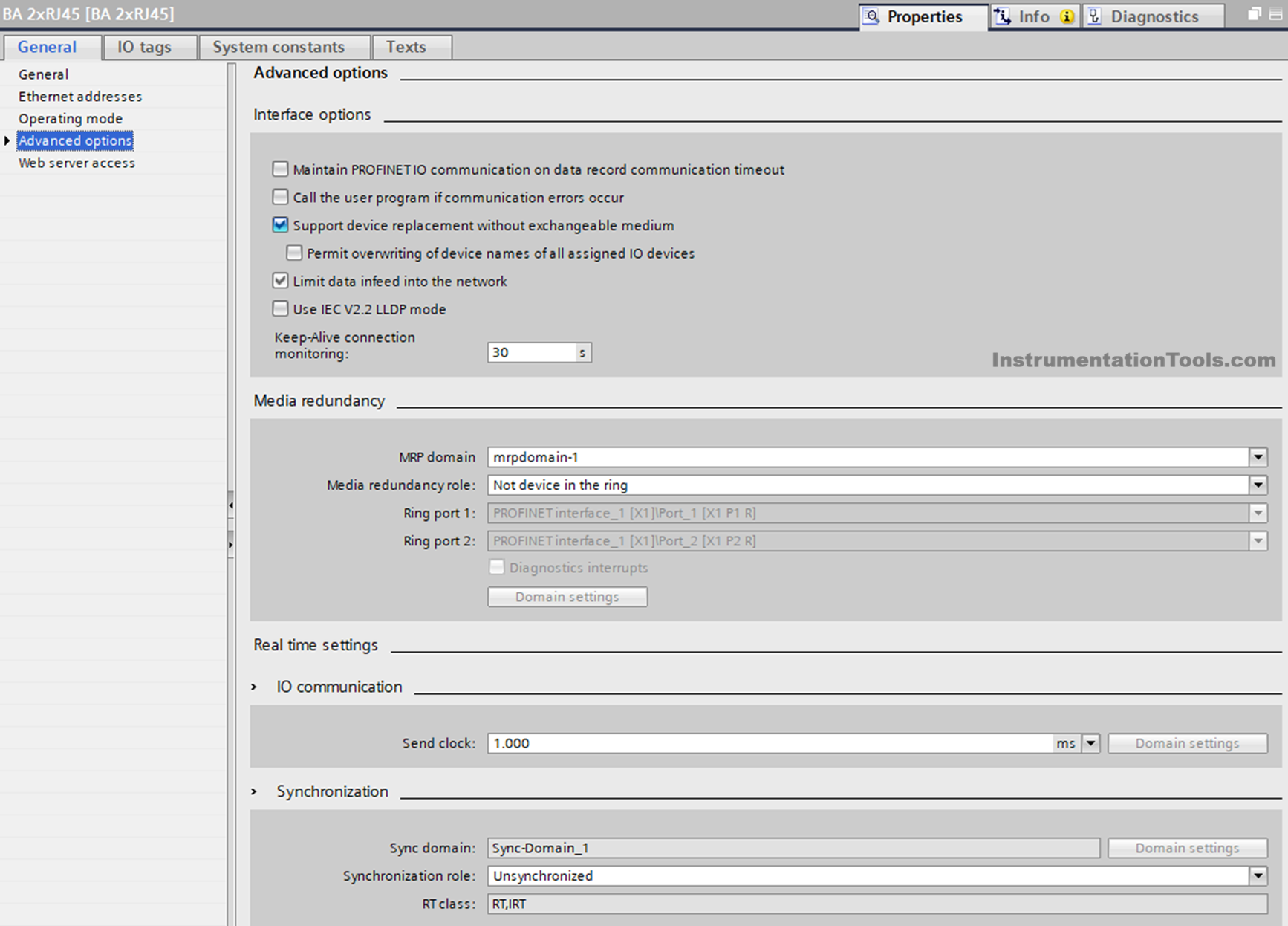
In the interface options, there are three factors to look at: maintain PROFINET IO communication on data record communication timeout, support device replacement without exchange medium and use IEC V2.2 LLDP mode. The first case means PROFINET cyclic communication (data) will happen even if acyclic communication (diagnostics, parameters, config transfer) breaks. This setting is disabled by default.
If an acyclic read/write timeout happens frequently, then it will break communication if the setting is disabled. The second setting means the device, if replaced, will automatically resume communication without manual intervention. This setting is enabled by default. If disabled, then communication will not happen without manual intervention during replacement.
The third setting means LLDP (link layer discover protocol) is being used for topology detection, detecting wrong port connections, and device naming assistance. This setting is disabled by default. Refer to the above image for the settings to be understood.
How to troubleshoot PROFINET?
Media redundancy is an option where the PROFINET communication goes on working in the network, even if it fails. But this is applicable only for ring topology, where there are two Ethernet ports on a single device. Out of these two ports, one port is blocked during normal communication. If the ring is found to be broken, then this blocked port will be opened so that a new path is developed and communication flow starts from that path.
For this, there are two parties responsible for the communication: the manager and the client. If this option is enabled and no device is set as manager, then the ring will not be controlled. The same issue will happen if multiple devices are set as managers. If the topology you have designed is not a ring, and this option is enabled, then unwanted communication with high data bandwidth consumption will occur, which will result in a breakdown (because the manager waits for ring data which will never come). Refer to the image below for more settings.
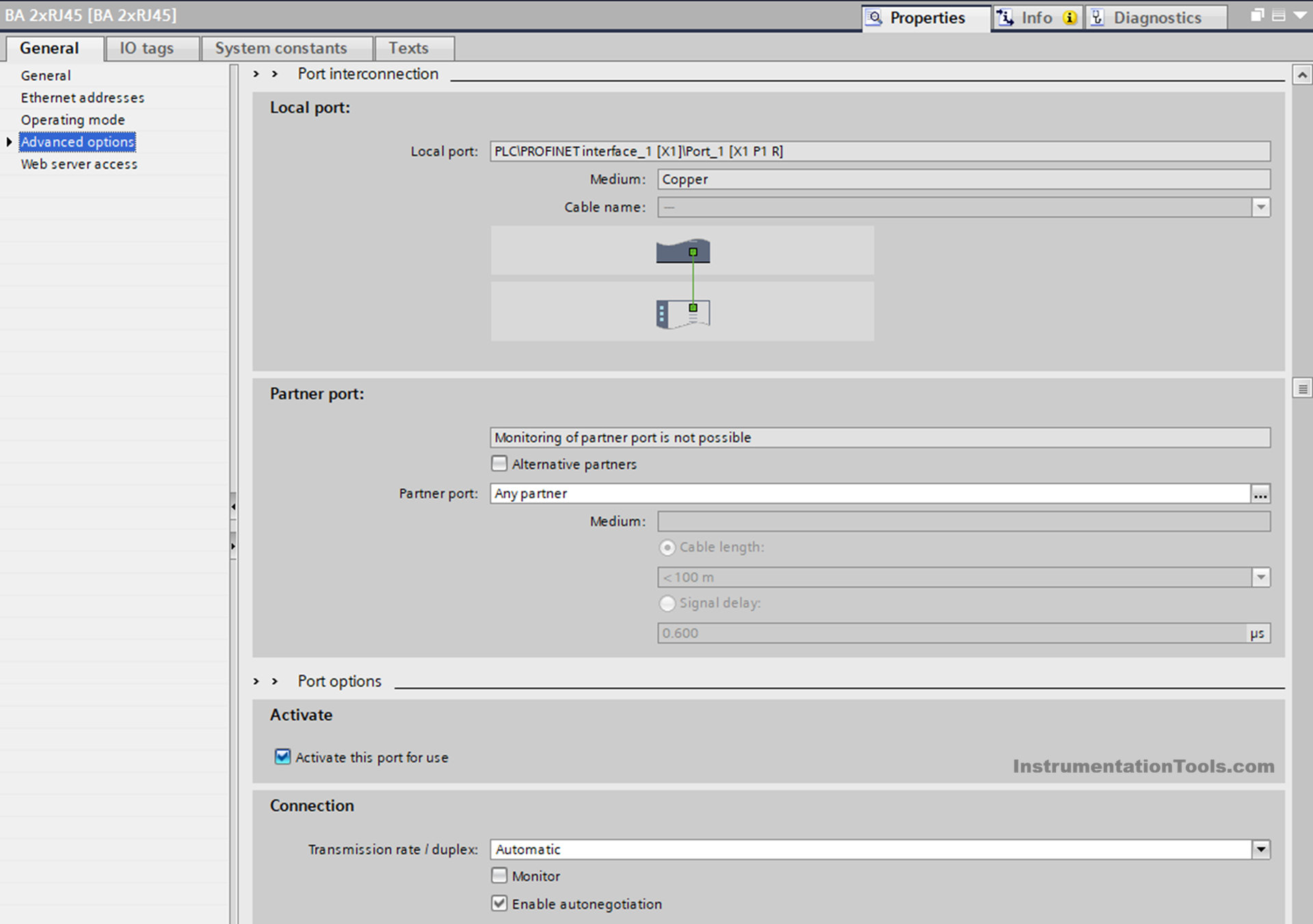
PROFINET has the option to activate or deactivate the port. If the port is not activated, then it means the port will not work. This option is activated by default. Refer to the image below for more settings. If the port is not working, you can immediately check the option to find whether the option has been deactivated by mistake or not.
Once activated, you can also select the transmission speed – automatic or 100 Mbps full duplex (depending on the model, this speed was just an example). So if you choose full duplex and the switch used in the panel is half duplex, then communication will break.
If the GSD file is incorrect, or the firmware version is not supported, or the parameters inside the GSD file are wrongly configured in the software, then communication will not happen. As a GSD file is the very first step in ensuring communication, it is always necessary to check its correct version as per the installed device.
Many PROFINET devices expose internal health parameters of the communication protocol. This is a very easy way to troubleshoot, considering you get all the status shown on the software, without any need to manually test and identify the faults. These come under “extended device diagnostics”. Such internal diagnostics must be studied properly by the engineer in the software document, so that he can quickly troubleshoot any issues in the communication.
PROFINET has two types of communication – RT (real-time) and IRT (isochronous real-time). RT transfers Ethernet frames directly at the data link layer without using TCP or UDP, which eliminates the overhead of the transport layer (Layer 4) in the OSI model.
IRT goes even further by operating purely at Layer 2 and using the Precision Time Protocol (PTP) to tightly synchronise the internal clocks of all devices on the network. This synchronisation ensures every device exchanges data at the exact predetermined moment. Because of this strict timing and clock alignment, IRT achieves the highest performance, with cycle times typically below 250 microseconds.
In RT, if the network bandwidth is too high beyond its system design limits, then the data packets start to be lost, and the device thus starts to update slowly to the real-time changes. So, in RT, always check for network load (though network load testing is a common requirement in any industrial communication protocol).
In IRT, if the time synchronization does not work properly – like once device fails to sync, or poor cable quality, or poor quality of IRT managed switch, or mismatch in time sync domain, or if a single device in the IRT network is configured at a slow update rate, then the communication will not happen, and if happening, then the natural speed given by IRT will not be maintained.
Be it any industrial communication protocol, it is always necessary to keep its catalogue in hand for reference, and the same goes for PROFINET. In this way, we saw advanced diagnostics in the PROFINET communication protocol.