This article discusses how to use the Web Server feature in TIA Portal software with an S7-1500 PLC. The Web Server is a built-in feature that allows the CPU to provide an internal web page that can be accessed through a standard browser (Chrome, Edge, Firefox) from a PC connected to the same network.
This feature functions as a web-based diagnostic and monitoring interface without requiring an additional HMI, allowing users to check the CPU status, read the diagnostic buffer, monitor variables in real time, and even download files from the PLC memory through a browser.
The Web Server is very useful during commissioning, remote troubleshooting, and routine maintenance because it reduces the need for additional devices and provides faster access to information. On the S7-1500, the Web Server also supports customizable web pages (user-defined pages) and direct access to Watch Tables from the browser.
Basic S7-1500 Web Server Concepts
- HTTPS-Based: The PLC Web Server runs over the HTTPS protocol. Access it through a browser by entering the CPU IP address.
- No Additional HMI: Only a PC connected to the same network is required; WinCC or an HMI panel is not necessary.
- Multi-User: Multiple users can access the Web Server simultaneously, with configurable access rights.
- Read-Only vs Read-Write: Some pages are only available for monitoring, but you can also modify variables through the Watch Table in the browser (with the appropriate access rights).
- Security: Supports user + password authentication.
Initial Preparation (With PLCSIM Advanced)
- Run PLCSIM Advanced: Open the S7-PLCSIM Advanced V3.0 application or later (Web Server is supported starting from V3.0).
- Create a PLC Instance: Create an instance with a name, for example, PLC_WebServer, and select “PLCSIM Virtual Ethernet Adapter” mode.
- Record the IP Address: Set the virtual PLC IP, for example, 192.168.0.1. Record the IP address of the PC where PLCSIM Advanced is running (for example, 192.168.0.100). Make sure both are in the same subnet.
- Make Sure the Virtual Adapter Is Active: Check Windows Network Connections and make sure the Siemens PLCSIM Virtual Ethernet Adapter status is Connected and its IP address has been configured.
- Use an S7-1500 CPU: The Web Server is available on S7-1500 and S7-1200 (certain firmware versions). For S7-1500, all firmware versions support it.
Configuring The Webserver In Tia Portal
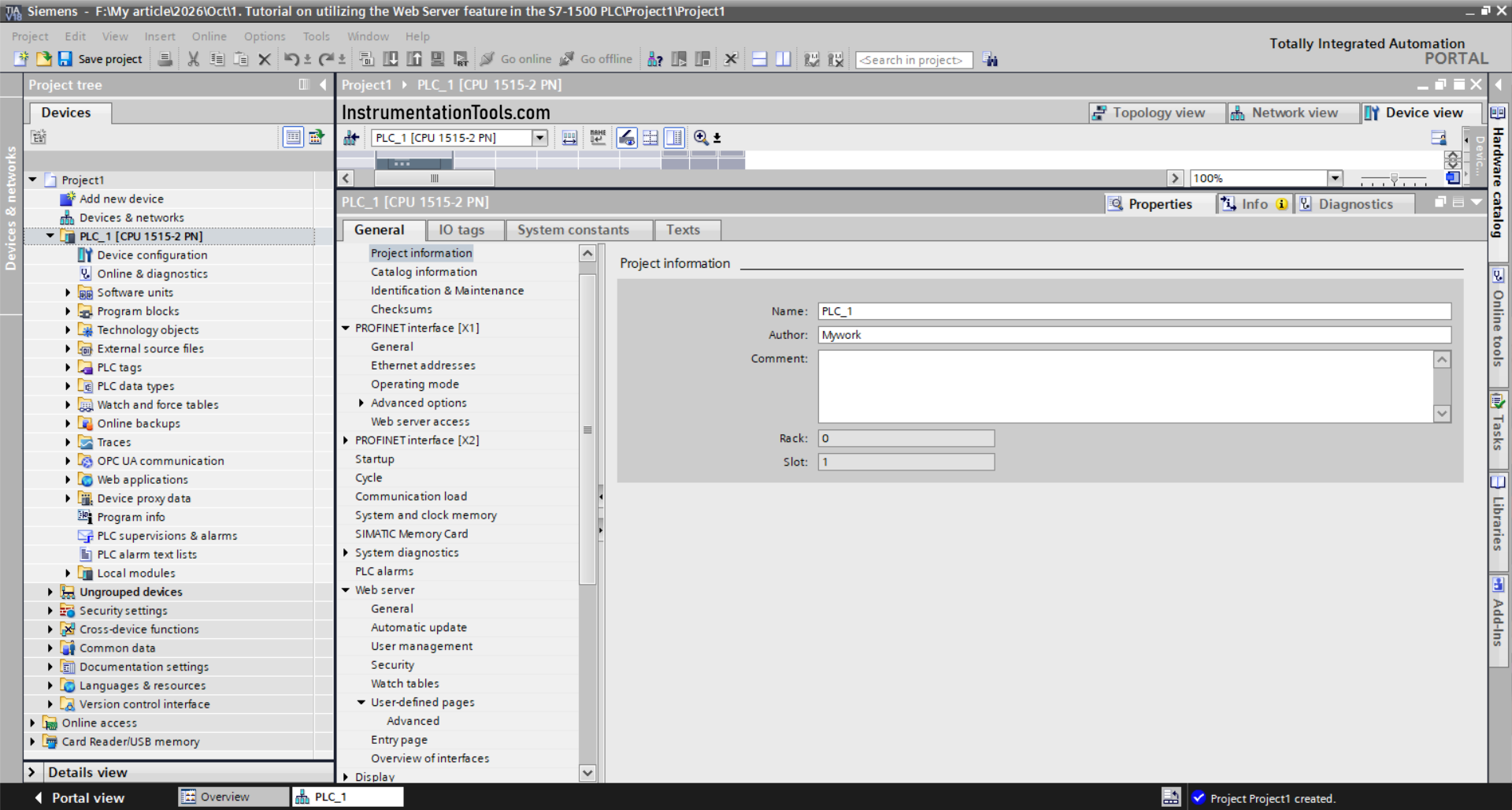
Step 1: Open CPU Configuration
- In the Project Tree, click the CPU → “Device configuration”.
- Click the CPU slot (usually slot 1) to open the Properties.
Step 2: Enable Web Server
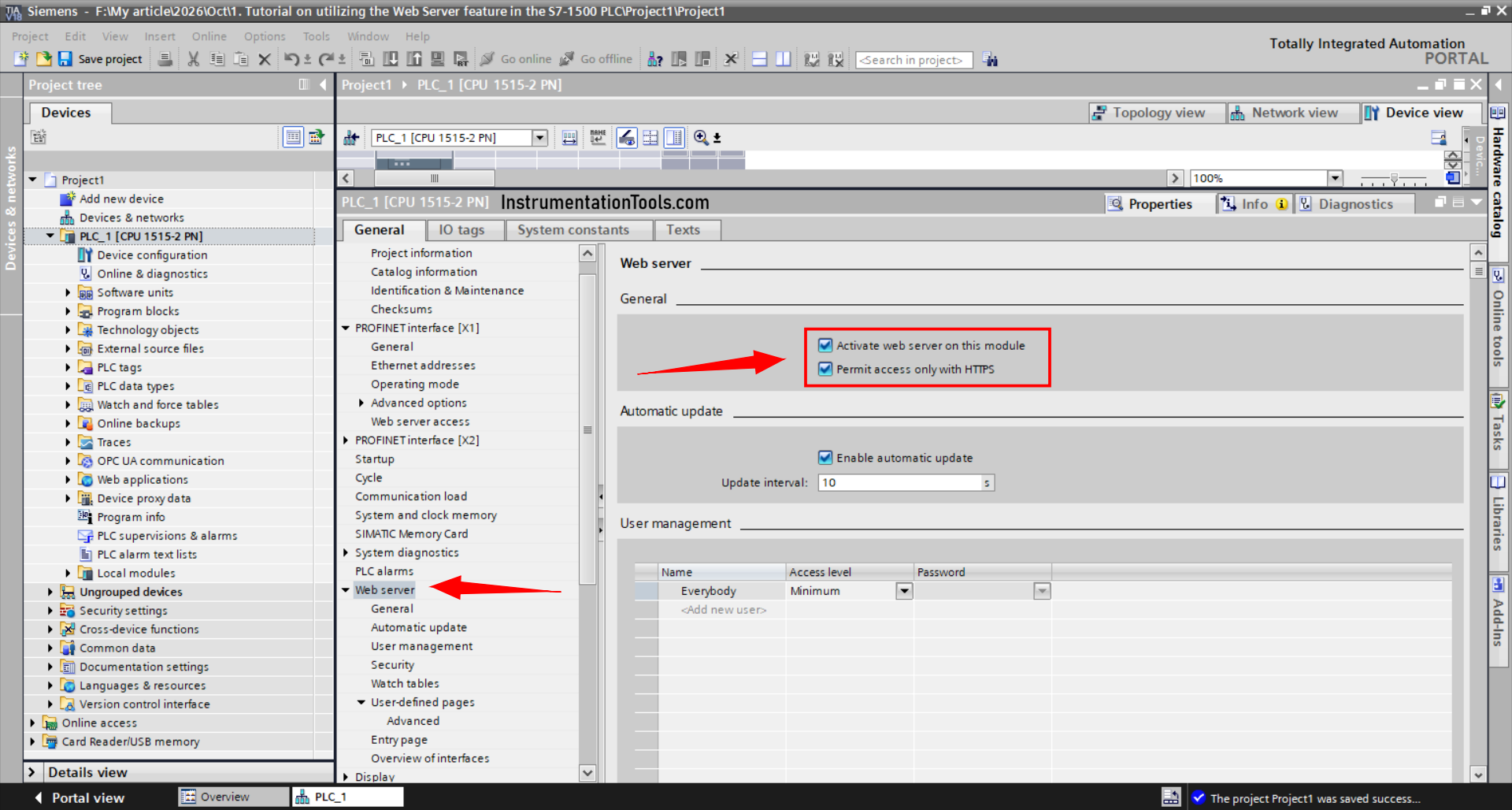
- In the Properties panel, open “General” > “Web server”.
- Check “Activate web server on this module”.
- Parameter Function: Enables the HTTPS server service on the CPU. Without checking this option, the Web Server will not run.
Step 3: Configure Access Settings
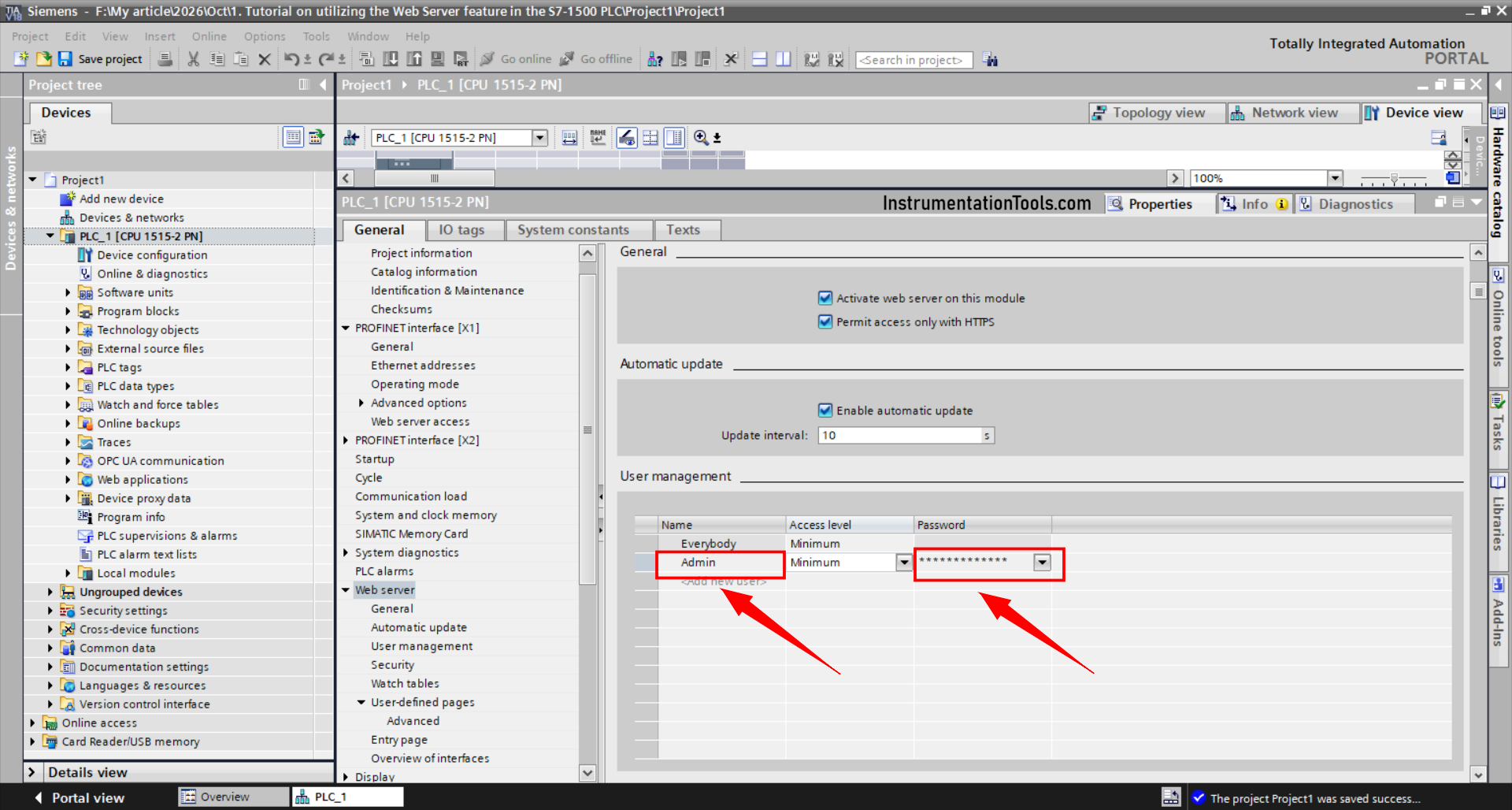
- In the “Automatic update” section, check “Enable automatic update” with the default interval (for example, 10 seconds). Function: The web page will automatically refresh according to this interval, which is useful for real-time monitoring.
- In the “Web server access” section, select “Permit access only with HTTPS” if you want an encrypted connection.
- In the “User management” section, configure the default user:
- Username: Admin
- Password: (enter as desired, for example #Admin123)
- Parameter Function: User management determines who can access the Web Server and the extent of their access rights.
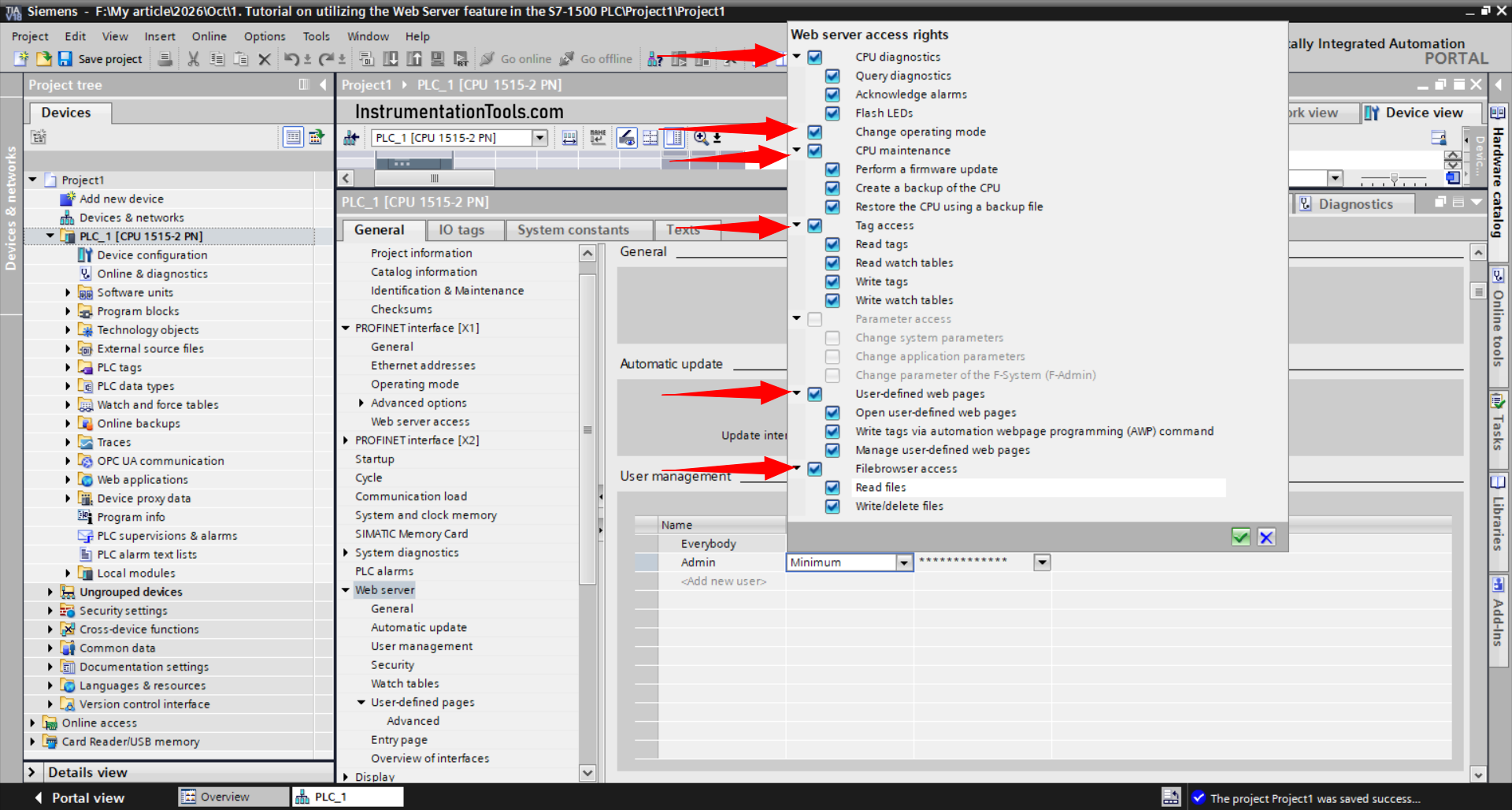
Step 4: Configure Allowed Features
- Open “Web server > Configuration”.
- Check the features you want to enable:
- “Enable CPU Diagnostic”
- “Enable Change Operating Mode”
- “Enable CPU Maintenance”
- “Enable Tag Access”
- “User-Defined Web Pages”
- “Enable File Browser Access”
- Function: Determines which features can be accessed from the web page.
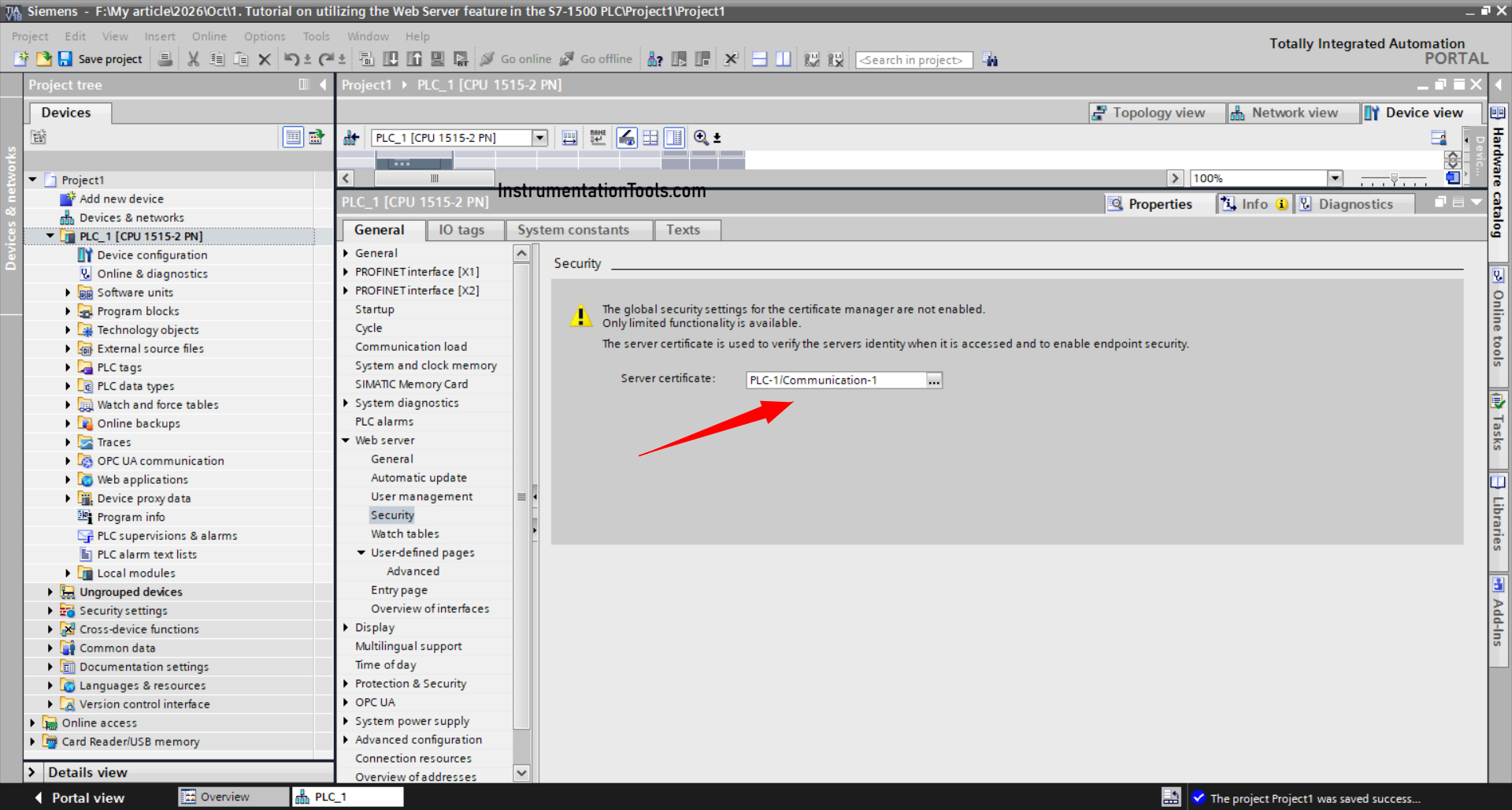
Step 5: Server Security (Web Server Certificate)
- For an S7-1500 CPU with firmware V2.0 or higher, a Web Server certificate must be generated and assigned to the CPU to use the HTTPS protocol.
- This certificate is also a prerequisite for Web Server user administration (password protection).
- The certificate can be generated or selected in the “Web server > Security” section of the CPU properties.
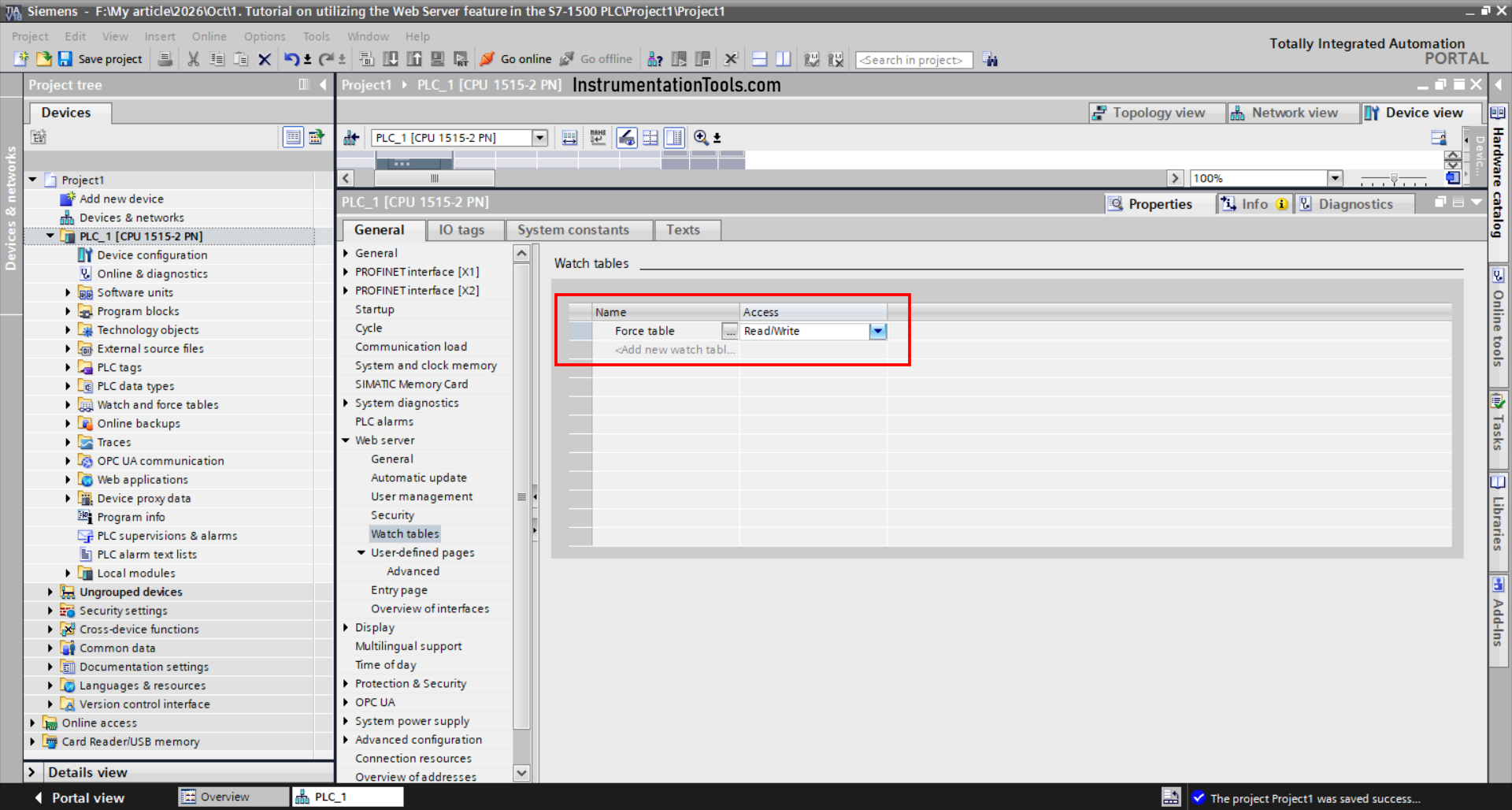
Step 6: Watch Tables in Web Server
- You can display Watch Tables configured in the Web Server.
- Select the desired Watch Table in the CPU parameter area “Web server > Watch tables” and specify the permitted access: Read access or Read/write access.
Step 7: Download to PLCSIM Advanced
- Click “Download to device” → select the “PLCSIM” interface → Download.
- After completion, make sure the virtual CPU is in RUN mode.
Accessing The Webserver From A Browser
- Open Browser: Use Chrome, Edge, or Firefox.
- Enter the CPU IP: For example, http://192.168.0.1 (or https://192.168.0.1 if HTTPS is enabled).
- Login: The login page will appear. Enter:
- User: Admin
- Password: #Admin123 (according to the configuration)
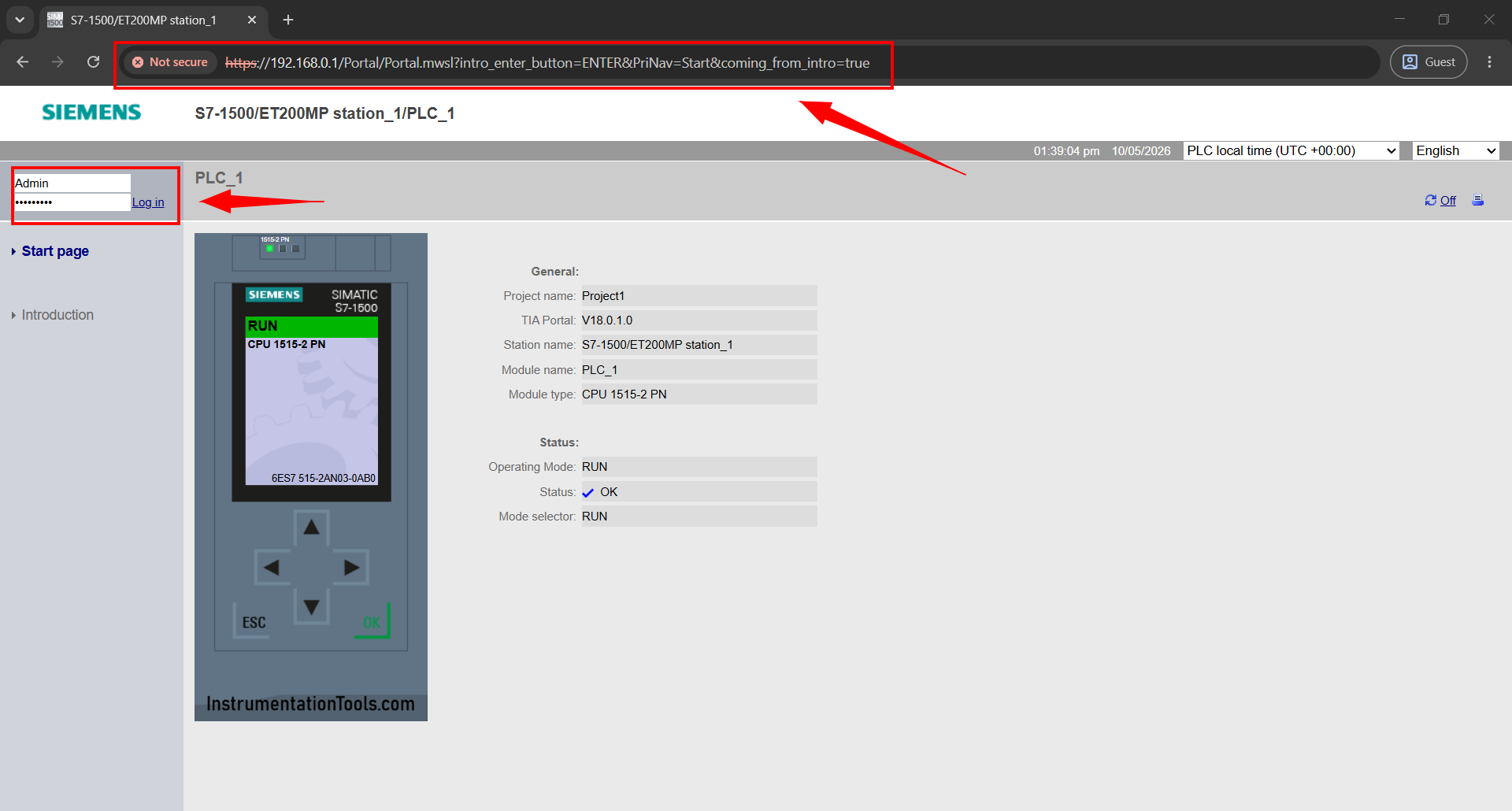
- Main Page Appears: You will see the Start Page with the Siemens logo and a navigation menu on the left.
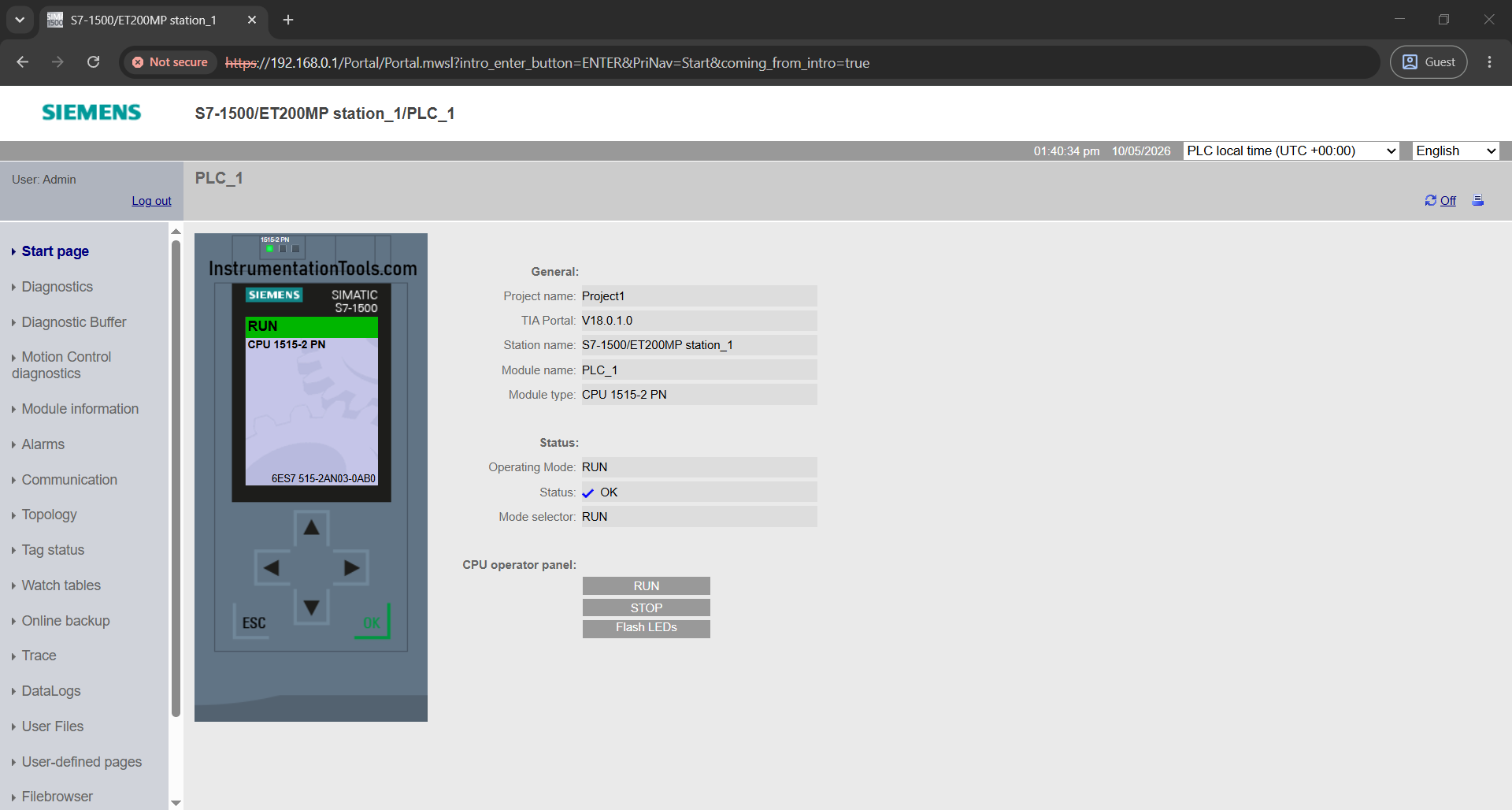
Information Available on the S7-1500 Web Server
| Page | Description |
| Start page | General CPU information: name, type, and current operating status. |
| Diagnostics: Identification | Serial number, article number, and version number. |
| Diagnostics: Memory | Currently used memory values. |
| Diagnostic buffer | Diagnostic buffer contents, with the latest entries displayed first. |
| Status of the modules | Station component status: OK, maintenance required, or unreachable. |
| Firmware update | Updates the CPU, display, or central/distributed module firmware using an update file. |
| Alarms | Project alarm texts with filtering and sorting options. |
| Communication | Communication connections, resources, interface parameters, and port statistics. |
| Topology | PROFINET topology with graphical and table views. |
| Tag status | User program operand status for value observation. |
| Watch tables | Watch Tables created with STEP 7/TIA Portal. |
| User pages | Custom web pages (if configured and loaded). |
| File browser | Files and directories on the SIMATIC Memory Card. |
| Data logs | Data logs generated by the user program. |
| Online backup | CPU configuration backup and restore (firmware ≥ V2.0). |
| Motion diagnostics | Status, errors, technology interrupts, and technology object values (firmware ≥ V2.0). |
| Trace | Measurement results stored on the SIMATIC Memory Card. |