Rockwell Automation is a very powerful brand in industrial automation. The PLC software, Studio 5000, is a well-known name among programmers and a very powerful tool for industrial automation applications. It has many advanced properties, which help a programmer to work quickly and efficiently. One such feature in this software is the extended tag property. This feature is a hidden one that many programmers do not know, and can be used extensively for programming. In this post, we will see how to use extended tag properties in Studio 5000 Logix Designer.
What is an extended tag property in Studio 5000?
Well, Rockwell Automation has provided a very smart way to handle tags that uses less memory and saves you programming work. That is done by the extended tag property. As the name implies, it is a property by which your tag’s configuration can be extended.
Let us simplify this with an example. Normally, when you define a tag in Studio 5000, you just edit its name, data type, and usage scope (whether local or global). This much is enough for a programmer. Now, let’s assume that you have taken an analog sensor tag. For that tag, if you are linking with SCADA, then you will also need to create three more tags for display and settings – units, minimum value, and maximum value. This makes a total of four tags for the PLC, including the process value tag, which you generated earlier. This increases PLC memory. To address this issue, Studio 5000 offers a way where you can use these properties without creating any extra tags.
In extended property, the three types of unit, maximum, and minimum, are available in the tag itself. Means you only have to define the single tag of the process variable, with data type as real. Then, in that tag, you get an option for extended property, where you can select these three values of unit, minimum, and maximum. Once selected, you just have to enter a static value in them ( note that it is not dynamic and so cannot link to some other tag here). Once set, you can then access that property in the program for use. To understand this practically, let us see next how to implement that.
How to access extended tag properties in Logic?
Refer to the image below. Create a tag, named level_sensor, for example. The data type we will define here is real. Now, on the right-hand side of the controller tags, you find a window named properties, or else you can also get the tag property from some other view by right-clicking the tag and selecting property. There, you can see the option named extended properties. When you click here, you find three options: engineering unit, max, and min.
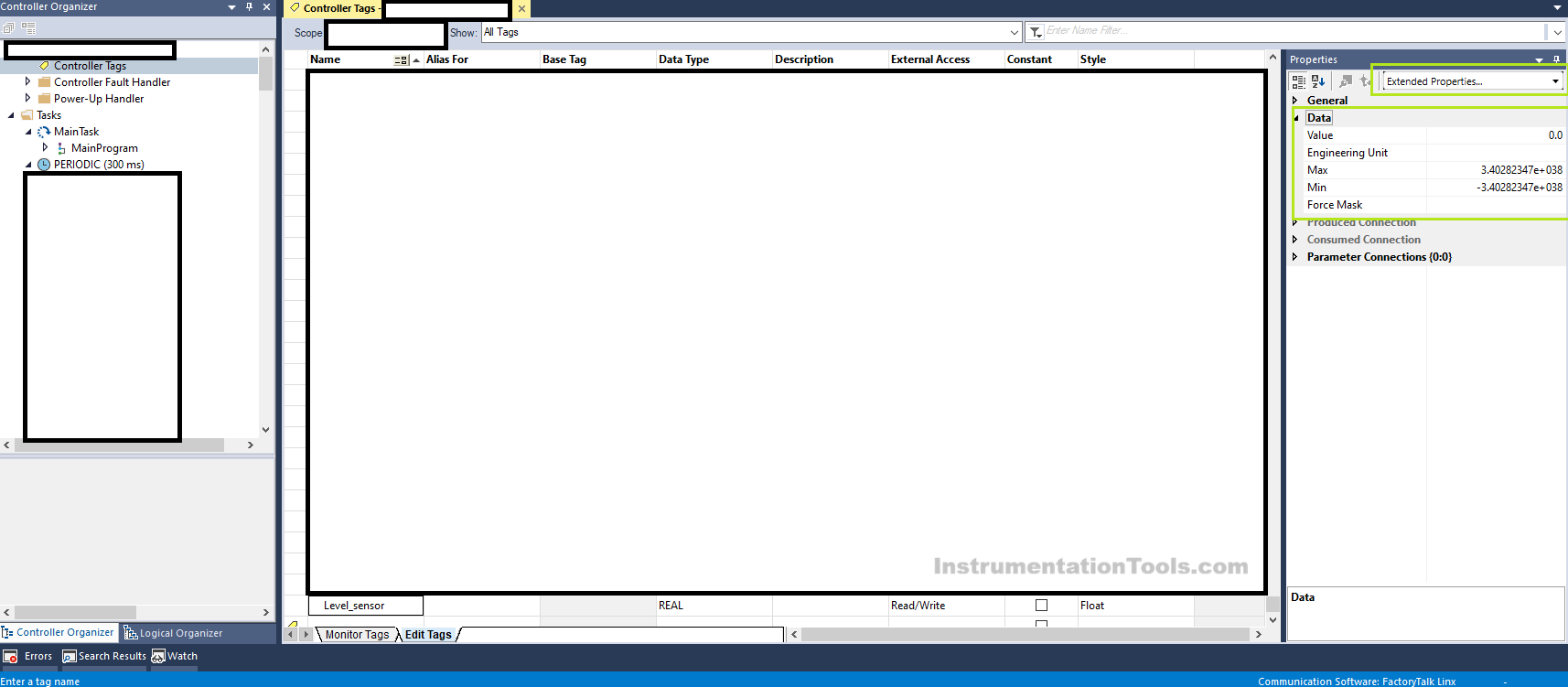
Now you can either tick or untick the option you require. If you require min, for example, just tick that option. Now, as you can see, you find five options in this property window: general, data, produced connection, consumed connection, and parameter connection. Expand the data option and enter the value you require to put, like 0. This can be done in both the cases of online and offline.
Next, you need to use this property in your program. So, let us compare this minimum value we set with the actual tag value. To access that property, you need to write level_sensor.@min for this, as shown in the figure. This will compare the minimum value with the actual value and generate an output. One major thing to note is that you can also access this tag via FTV SCADA or HMI. But there, you can only read the value and cannot write it, as discussed earlier.
Different data types in Studio 5000 have their own sets of extended properties, which can give an extra 2-3 tags, without creating any new ones. This notably saves the PLC memory. But it is useful in conditions only when you know that these values will be static and will not be changed in the future. If that is the case, then you can comfortably use the extended properties of a tag for further programming. In this way, we saw how to use extended tag properties in Studio 5000.